SENSORIA
Since 1990
SENSORIA, Charming your Senses
Welcome
Sensoria means 'Charming your Senses'.
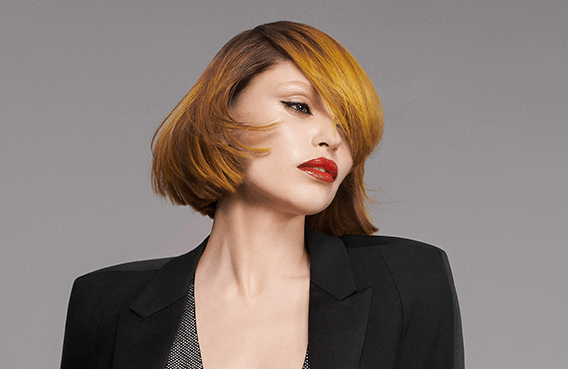
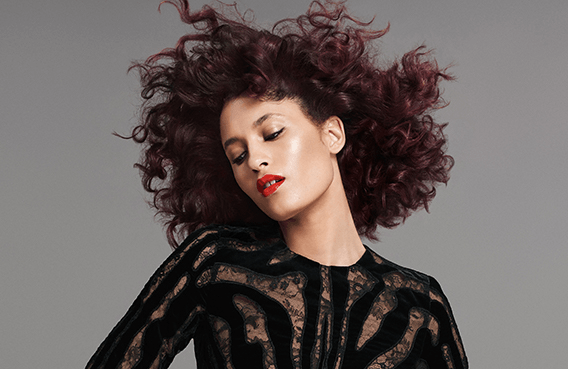
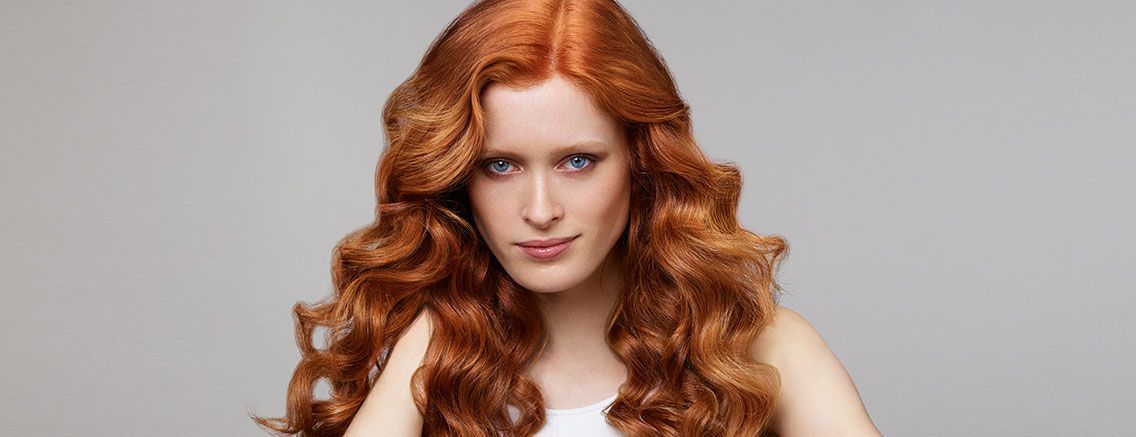
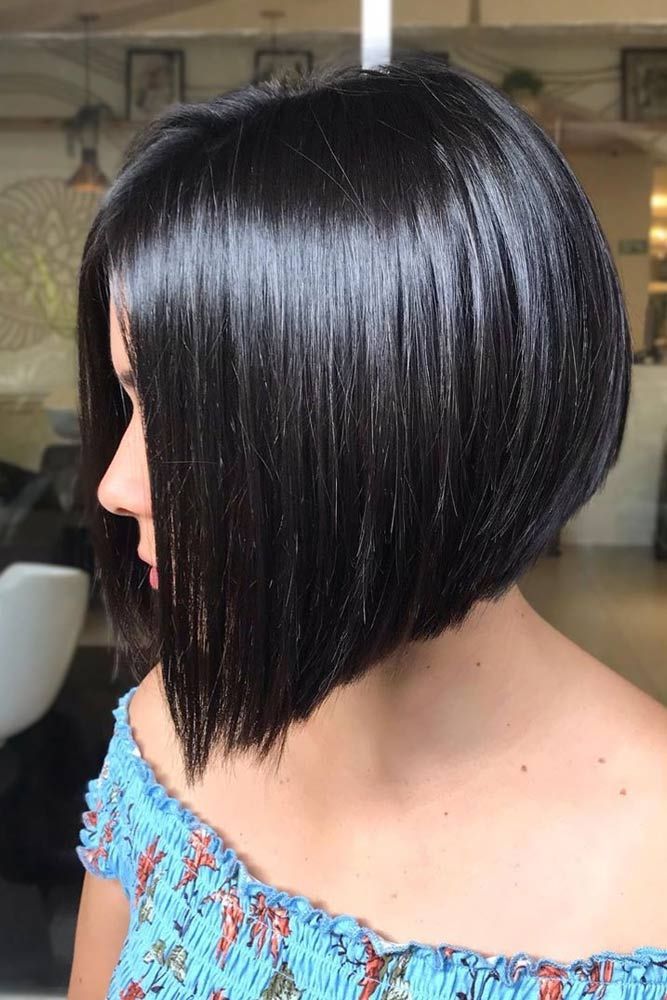
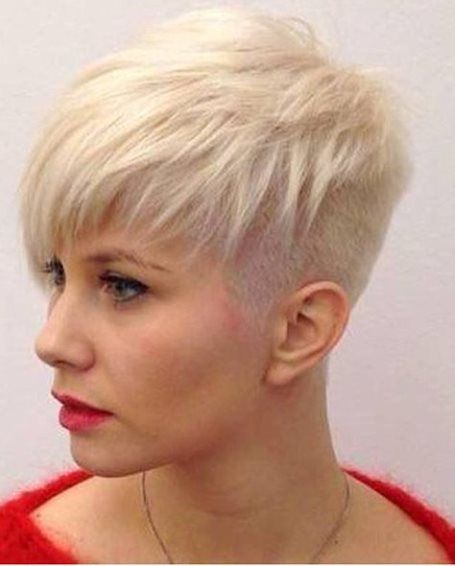
We provide a hair salon that has sensory appeal…a wonderful space for relaxation and creativity.
Sensoria Hair Salon appreciates the uniqueness of our clients and places high priority on originality, service, satisfaction and environmental responsibility.
Our team is committed to delivering great hair and service in a stimulating environment. Our stylists have a passion for learning and observing the latest trends and our desire to “maintain a high level of creativity and caring” is reflected in the ambience of Sensoria.
We appreciate that your experience is a total experience and that your self confidence is our best indication of our success, which is why we make sure that you walk out of our salon looking great and feeling terrific.
We look forward to seeing you soon.
Meet Our Team
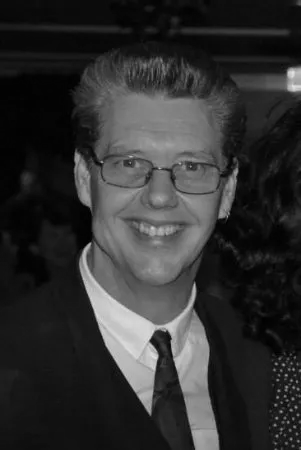
Ray
Creative Director & Owner
Specalizing in ladies & Gentlemens Haircuts

Holley
Stylist